YouTube Strategy
The YouTube Description Template That Ranks and Converts
Most YouTube descriptions are either ignored or stuffed with keywords. Here is the template that helps your videos rank on search and turn viewers into leads or subscribers.
By Crescivo Team • July 8, 2026 • 10 min read
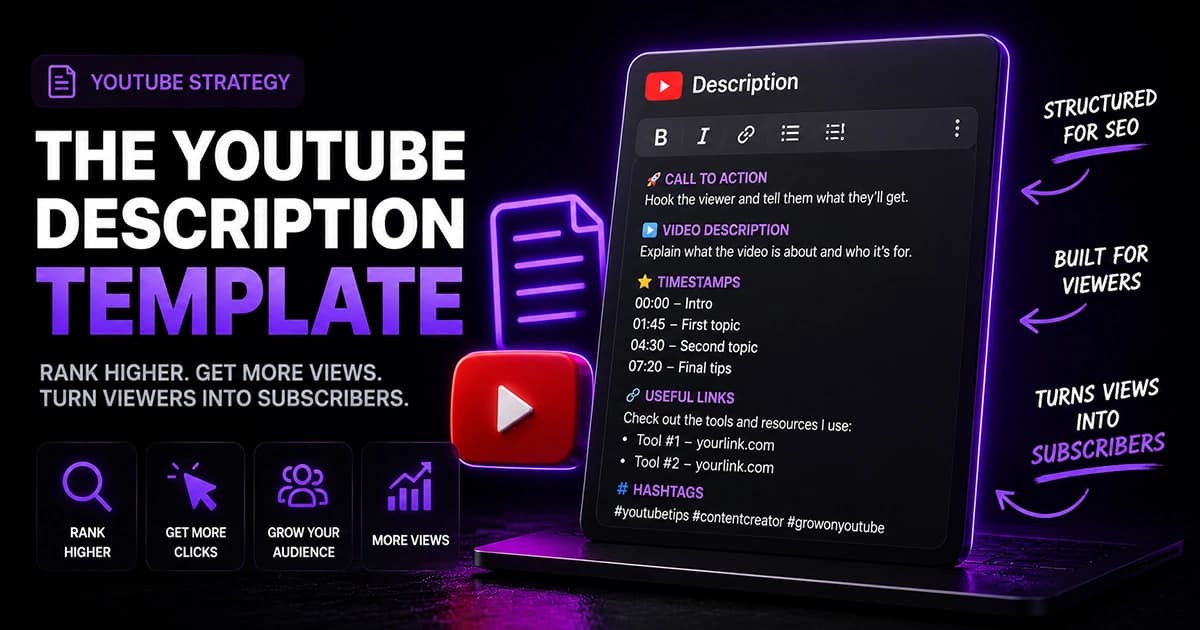
Table of contents
A YouTube description is not just an SEO field to fill in. Done right, it ranks your video, supports conversion, and works harder with every upload because most of it never needs to change.
A lot of creators either stuff it with keywords or leave it mostly blank. Neither helps. This is the template that does both jobs: ranking and converting.
Find Your Biggest YouTube Bottleneck
Most creators guess what to fix. Run the free Channel Bottleneck Calculator and discover the one metric holding back your growth.
Run Free AnalysisWhy the description matters more than you think
When someone clicks on your video, YouTube only shows the first couple of lines of the description before cutting off with a "show more" button. That visible section is prime real estate, and what you put there determines whether a viewer takes action or scrolls past.
Below the fold, the description still matters, but for different reasons. Search engines and YouTube's own system use the full description to understand what your video covers, which affects how it gets indexed and surfaced.

The YouTube description template
Here is the structure, from top to bottom.
1. Call to action and link (above the fold)
The very first thing in your description should be a call to action and a link. Not a paragraph of context. Not your channel name. The action you want the viewer to take.
If you are a business owner using YouTube to generate leads, book calls, or attract clients, this is where that link goes. Keep the wording short, a couple of words at most, and paste the link directly after it. If the link is long, shorten it with something like Bitly so it looks clean and is easier to track.
If you do not have an external destination to send people to yet, a subscribe call to action works here too. The subscribe button is already visible above the video, but having it written in the description reinforces it without requiring the viewer to do anything extra.
The logic is simple: reduce the number of clicks between the viewer and the action you want them to take. Putting your CTA at the top means it is always visible without anyone having to scroll.

2. Video description (changes per video)
Beneath the CTA, write two to three short sentences that explain what the video is about. This section changes with every upload, so it is the main thing you need to write fresh each time.
Take the main keyword you are targeting and make sure it appears here naturally. Pull in a couple of supporting keywords from your tag research as well, but only the ones that fit without forcing them. The description should make sense to a real person reading it, not just to an algorithm scanning it.
Write at a third to sixth grade reading level. Short sentences, plain words, no jargon.

3. About me section (optional, stays the same)
If you are building a personal brand, an about me section is worth including. It does not change between videos, so you set it once and it carries across every upload automatically.
This section does two things. It adds social proof and authority, because you can include how long you have been in business, what you have built, results you have achieved, and why your perspective is worth listening to. It also adds a consistent layer of supporting keywords to every video you publish, which compounds over time.
This is not essential, but if you are trying to build trust with a new viewer who has never heard of you before, having a brief and credible about me section answers the "who is this person?" question without them having to go looking.

4. Timestamps (for search content)
Timestamps belong in descriptions for search-based content, meaning videos you expect people to find through YouTube search or Google search. For discovery content, they are less critical.
When you add timestamps, each chapter gets a title. Those titles can be keyword-optimised for the specific question or topic that section covers, which means a single video can rank for multiple search queries, not just the one in your main title. Google can also surface individual clips from a video in search results, and AI tools increasingly pull specific sections from transcripts when answering questions.

Getting timestamps does not have to be a manual process. If you edit in Premiere Pro, you can export a text file from the timeline and upload it to ChatGPT to generate chapter timestamps automatically. Alternatively, once a video is published, tools like YouTube to Transcript can pull the full transcript with timestamps, and you can use AI to break it into chapters from there.
5. Additional links
Below timestamps, add any other links that are relevant to the video: affiliate links, website links, social media profiles, or any resource you mention in the video. Keep them labelled clearly so viewers know what they are clicking on.

6. Hashtags
Finish with three hashtags, no more. Keep them broad rather than hyper-specific. If the video is about business, use something like #business, #marketing, or #leadgen depending on the topic, rather than an ultra-specific hashtag that almost no one searches.
Hashtag pages on YouTube tend to be broader categories. Ultra-specific hashtags do not have enough volume to be worth targeting, and going too niche makes the hashtags less discoverable rather than more.

The full description template
Here is what a complete YouTube description looks like using this structure. Copy this, swap in your details for the static sections, and you only need to update the video description and timestamps with each new upload.
[CTA — one line]
Book a free strategy call: yourlink.com

[Video description — 2-3 sentences, changes each upload]
In this video, I cover [main topic]. You will learn [key point 1], [key point 2], and [key point 3]. This is for [audience] who want to [outcome].

[About me — set once, stays the same]
I'm [Name]. I help [audience] [achieve result] without [common frustration]. I've [key credential or result]. Follow the channel for [topic] every [frequency].

[Timestamps]
00:00 Introduction
00:00 [Insert chapter title]
00:00 [Insert chapter title]
00:00 [Insert chapter title]
00:00 [Insert chapter title]

[Additional links]
[Resource name]: link
[Free download or tool]: link
Instagram: link
LinkedIn: link

[Hashtags]
#hashtag1 #hashtag2 #hashtag3
How to make this fast with upload defaults
The template above looks like a lot of work until you realise how little of it actually changes between videos.
YouTube lets you set upload defaults, which are sections that automatically populate every new video you upload. The only things that need to change on a video by video basis are the video description itself and the timestamps. Everything else, including the CTA and link, the about me section, your standard additional links, and one or two of your hashtags, can be set once and left alone.
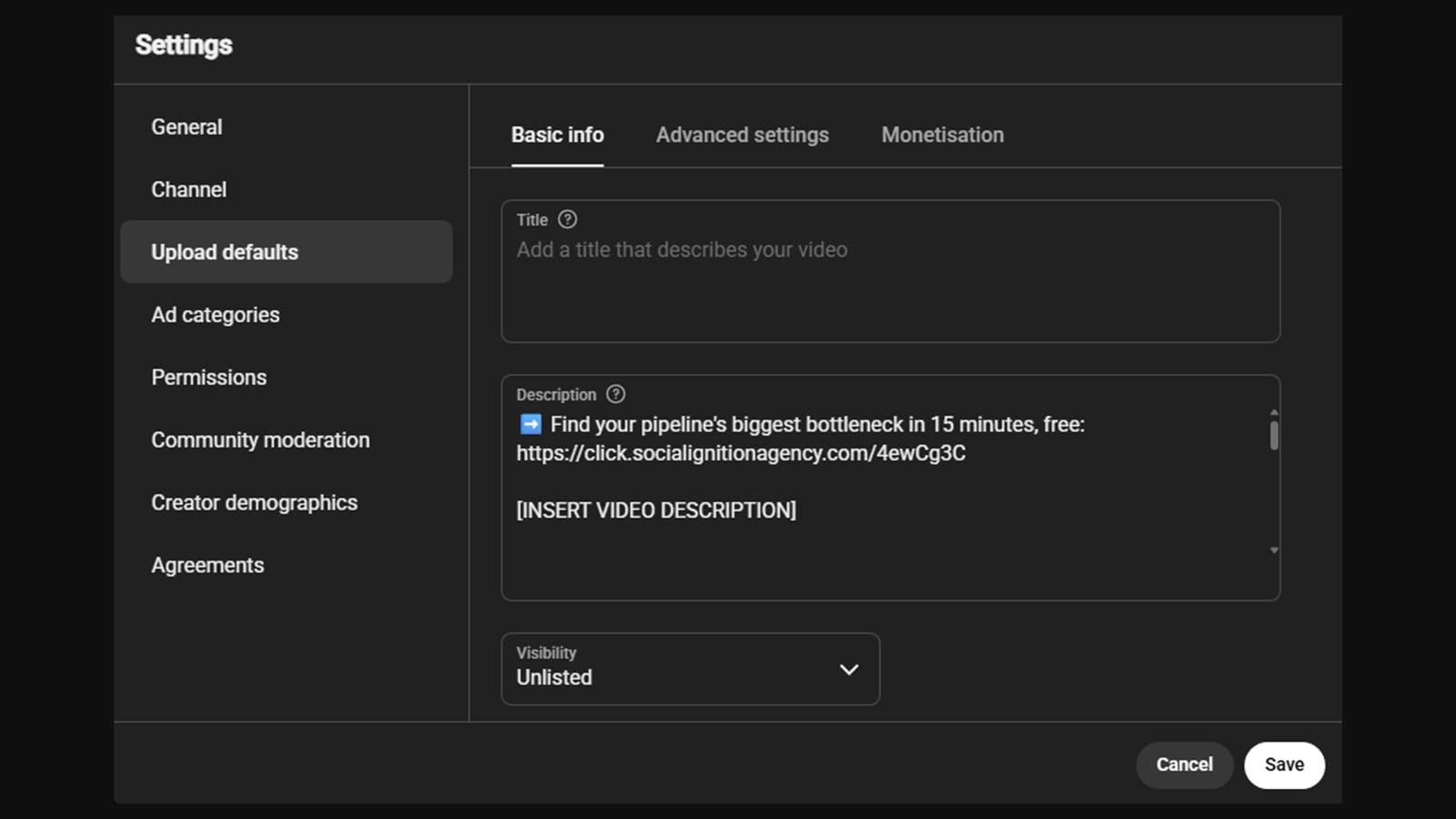
One limitation of YouTube's native upload defaults is that the same template applies to every type of upload, including Shorts and live streams, which often need a different setup. Crescivo lets you set separate upload defaults per content type, so your standard video template, your Shorts template, and your live stream template can all be different without having to manually rewrite things each time.
In practice, this means sitting down once to write the template, loading it into your defaults, and then only writing two things fresh for each new upload: a short video description and your chapter timestamps once the edit is done.
Set up your description template in Crescivo
Use Crescivo to manage upload defaults by content type and stop rewriting the same description from scratch every time.
Get Started FreeFAQ
What should I put in a YouTube description?+
Start with a call to action and a link above the fold. Below that, write two to three sentences describing the video using your main keyword and a couple of supporting ones. Add timestamps for search content, an optional about me section, any additional links, and finish with three broad hashtags.
Do YouTube descriptions help with SEO?+
Yes, when done right. The description helps YouTube and Google understand what your video covers, which affects how it gets indexed. Using your main keyword naturally in the description, along with keyword-rich timestamp titles, gives your video more opportunities to rank across different search queries.
How long should a YouTube description be?+
There is no required length. The first two to three lines are the most important because they are visible without clicking. Beyond that, include what is genuinely useful: a video summary, timestamps for search content, links, and hashtags. Do not pad it out just to add length.
How many hashtags should I use in a YouTube description?+
Three is enough. Keep them broad rather than ultra-specific. Hashtag pages on YouTube tend to cover wider topics, and very niche hashtags rarely have enough search volume to be worth targeting.
What are YouTube upload defaults?+
Upload defaults are pre-filled description settings that YouTube automatically applies to every new video you upload. You can use them to save your static sections, like your CTA, about me, links, and hashtags, so you only need to write the video-specific parts fresh each time.
Do I need timestamps in every YouTube description?+
Not for every video. Timestamps are most valuable for search-based content, where viewers are likely to come from YouTube search or Google search and want to jump to a specific section. For discovery content, they are less important.
What to do next
Build the template once. Write your CTA, draft your about me section if you want one, and decide on your standard hashtags. Load those into your upload defaults. From there, the only thing you need to write fresh each time is the video description and the timestamps, and the heavy lifting is already done.
Find Your Biggest YouTube Bottleneck
Most creators guess what to fix. Run the free Channel Bottleneck Calculator and discover the one metric holding back your growth.
Run Free AnalysisRelated Articles
More guides to help you diagnose and improve your YouTube growth.
YouTube Strategy
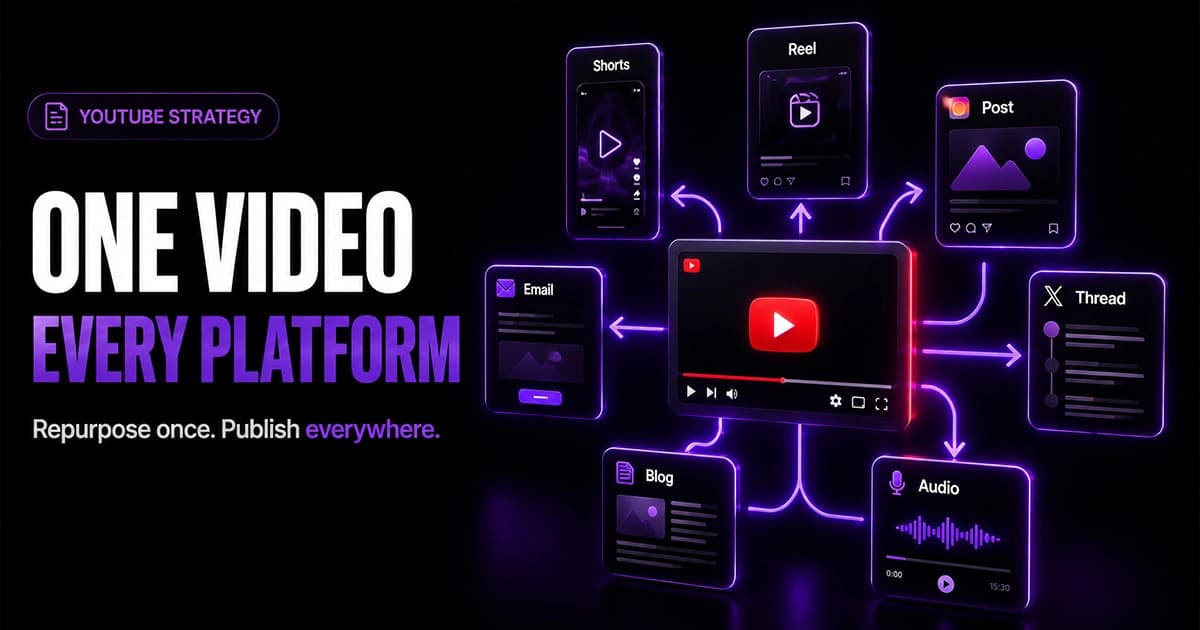
How to Turn One YouTube Video Into Content for Every Platform
YouTube is the hardest platform to create for, but it gives you the most leverage. Here is how to repurpose one YouTube video into content across every other platform.
YouTube Strategy
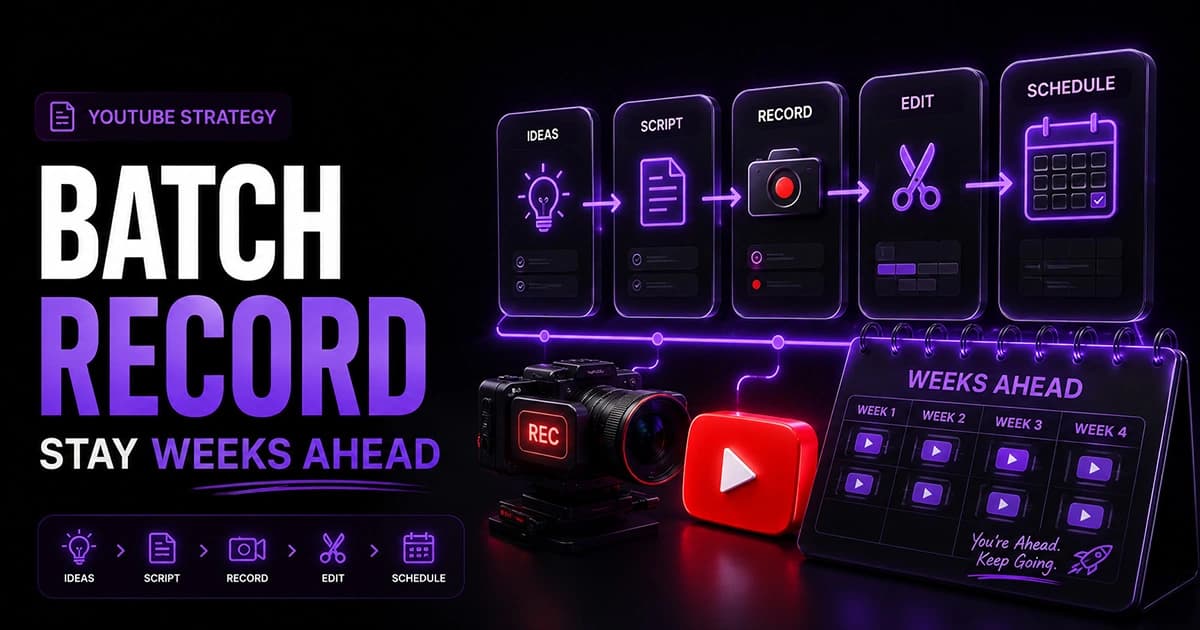
How to Batch Record YouTube Videos (And Stay Weeks Ahead)
Batch recording YouTube videos is not just about saving time. It is about removing the weekly grind. Here is the production system that keeps you consistently ahead.
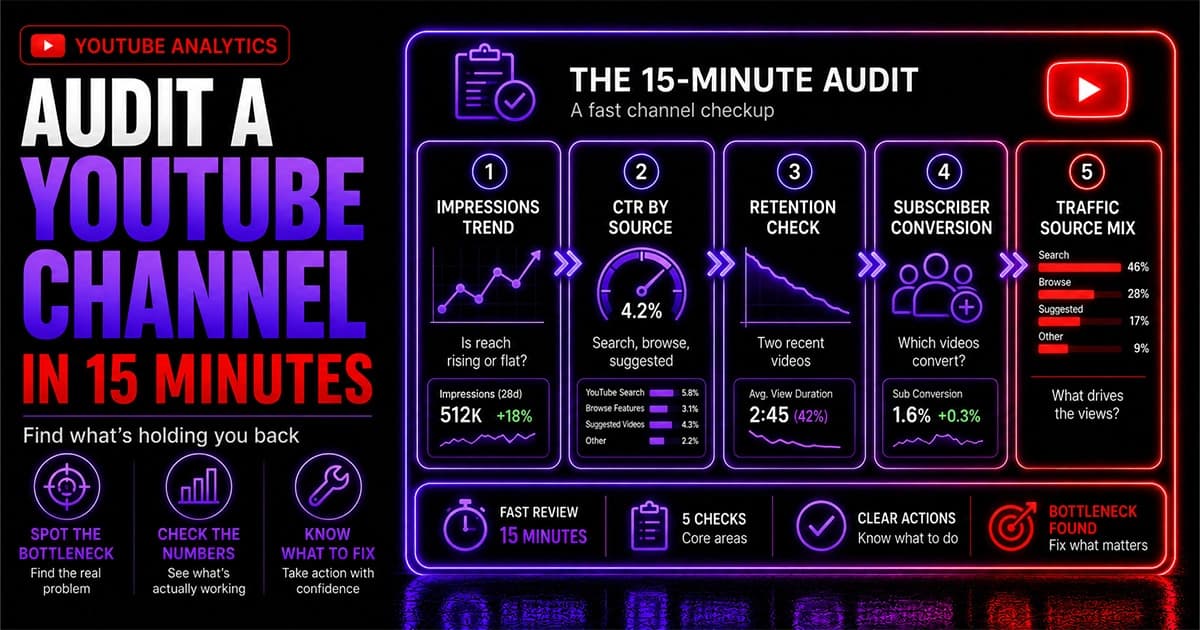
YouTube Analytics
How to Audit a YouTube Channel in 15 Minutes
You do not need hours to know if your YouTube channel has a problem. Here is a focused 15-minute audit that tells you exactly where to look and what the numbers mean.
Find Your Biggest YouTube Bottleneck
Most creators guess what to fix. Run the free Channel Bottleneck Calculator and discover the one metric holding back your growth.
Run Free Analysis